Release 6.0
The release contains the items agreed in work package 6.
Work Package Changes
1. Citizen can print/save a copy of their Submission
Once the Citizen has submitted their appeal they will have a download button on the receipt page.
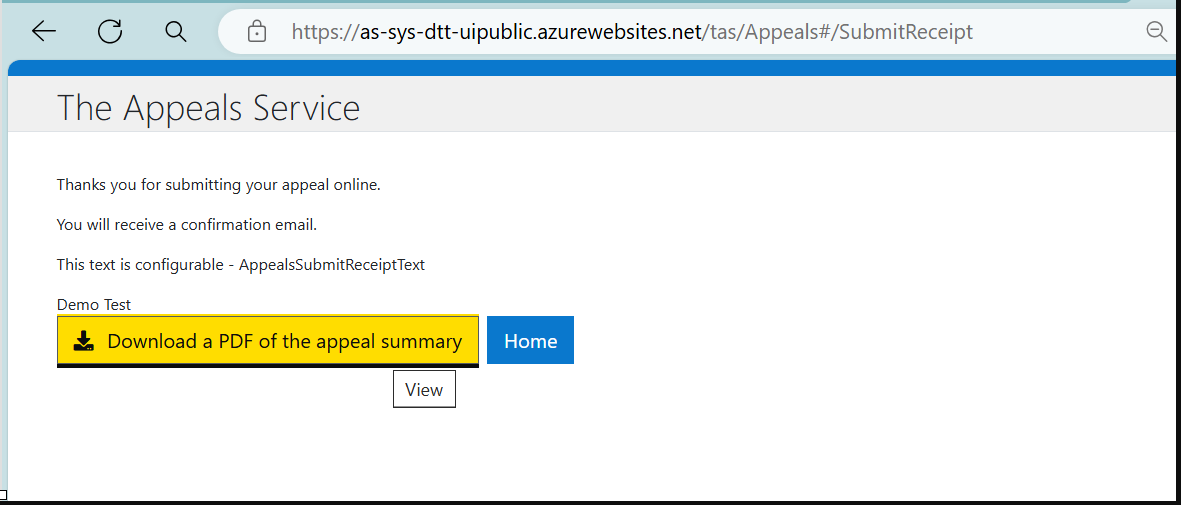
Clicking the download button will download a copy of the appeals pdf document for their appeal.
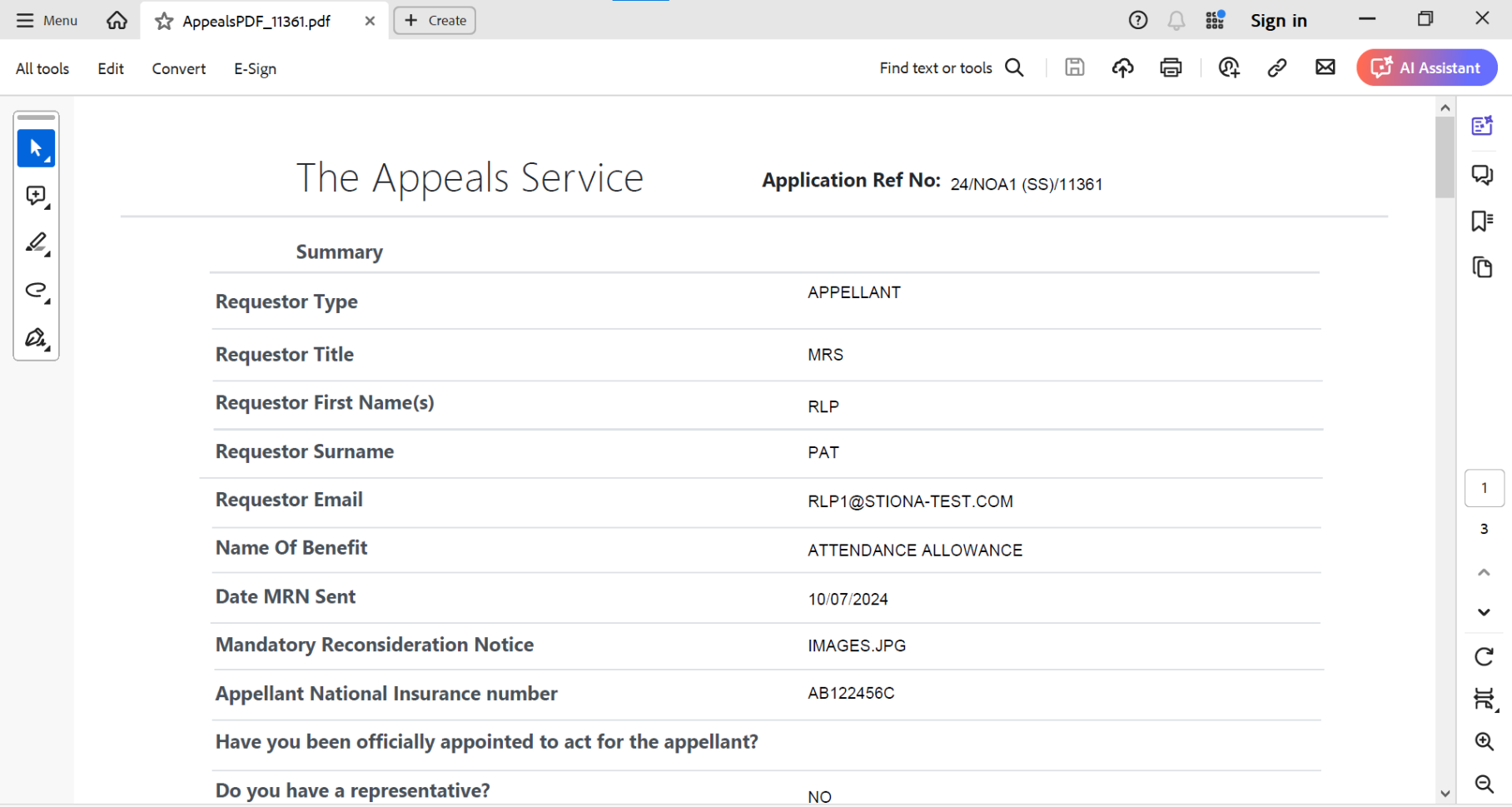
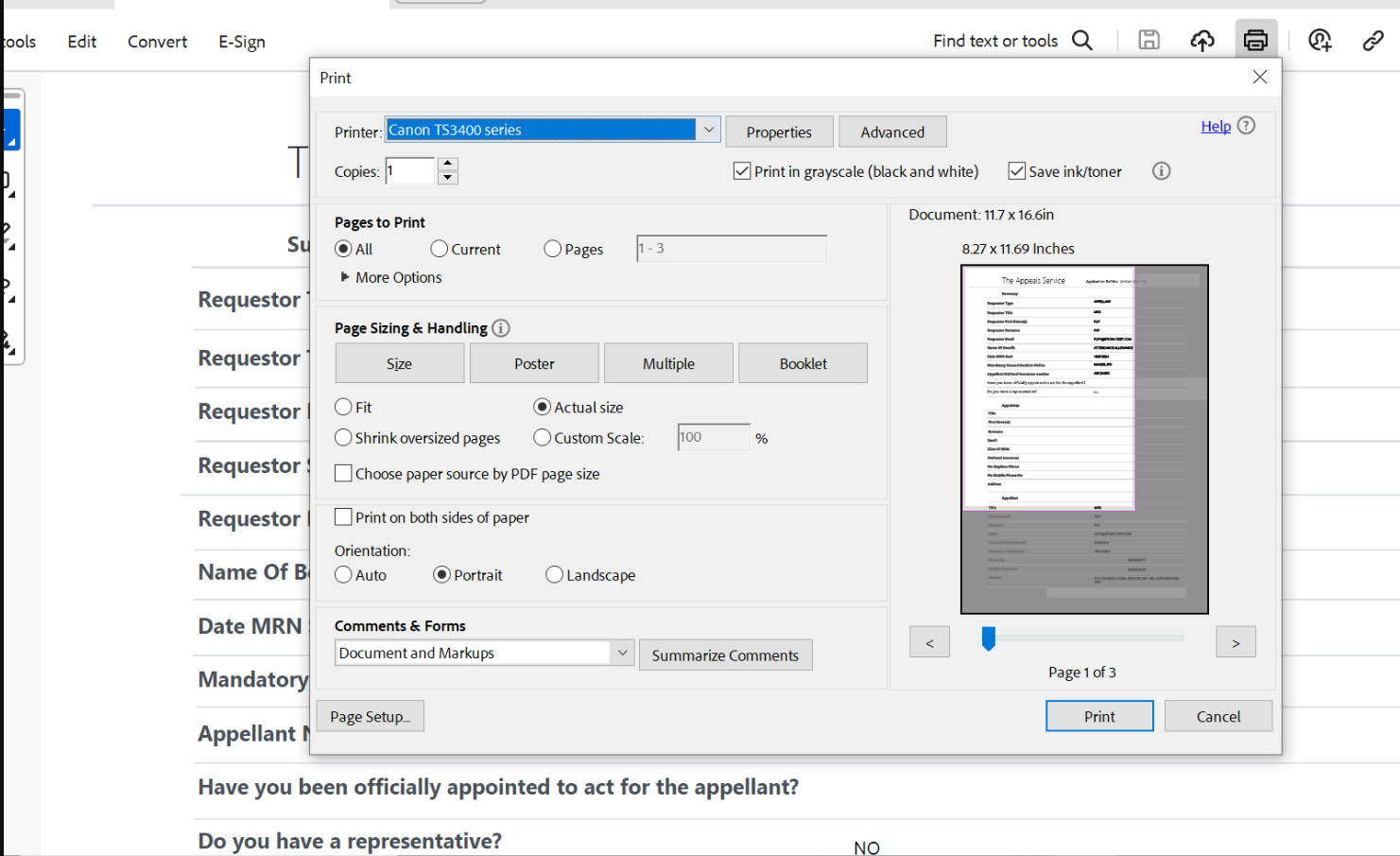
Which can then be printed.
2. Automatic deletion of Citizen Saved applications after 72 hours
When a Citizen saves a partially completed appeal, they have 72 hours to retrieve and complete. During this time the appeal displays in the TAS Admin portal. These appeals will no longer require to be manually deleted - they will automatically delete after 72 hours.
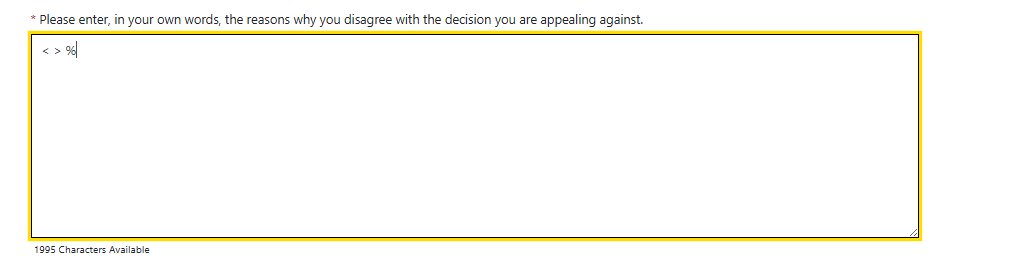
3. Changes to permit the use of invalid characters < > and % in the appeals comments
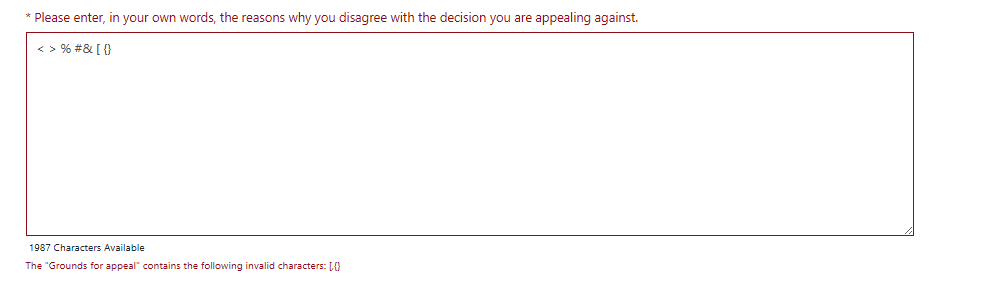
The grounds for appeal text box will now permit the use of the '<>' and % symbols.
4. Increase in Grounds for Appeal Textbox Max Character
The Grounds for Appeal textbox has been increased to permit up to 2000 characters.
5. Grounds for Appeal Helptext
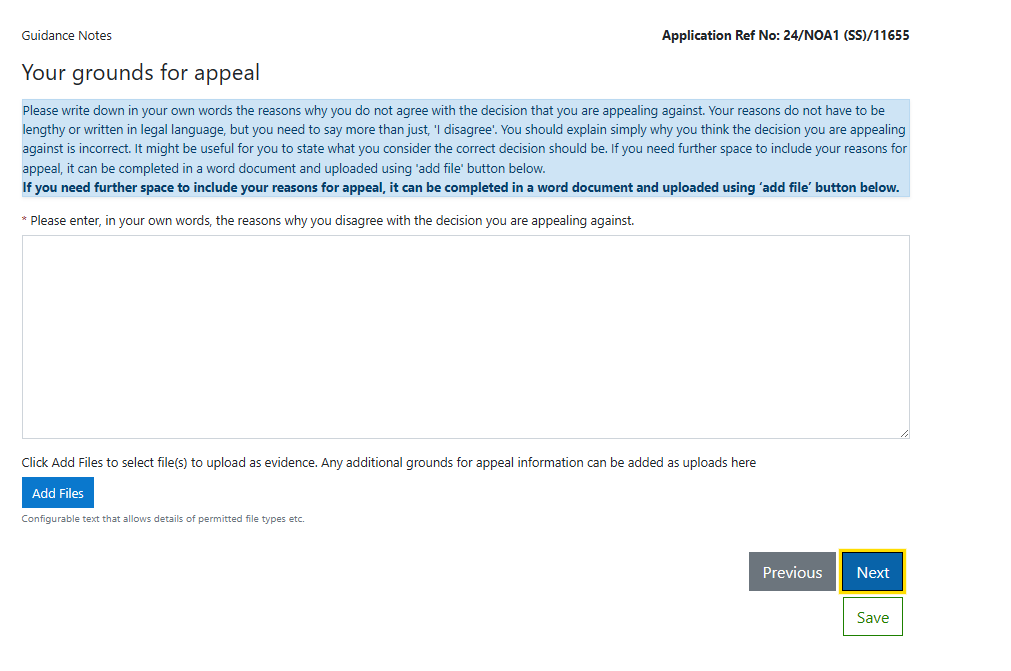
We have added the helptext provided to the Grounds for Appeal helptext.
We have also added the additional helptext provided for the textbox and also included how to enter additional information (>2000 chars)
6. Compensation Recovery Appeal - NINO will no longer be mandatory
For all appeals using NOA1 (CR) Form type, the NINO fields will no longer be mandatory. Due to this change the Duplicate Application check will not be undertaken for these appeal types.
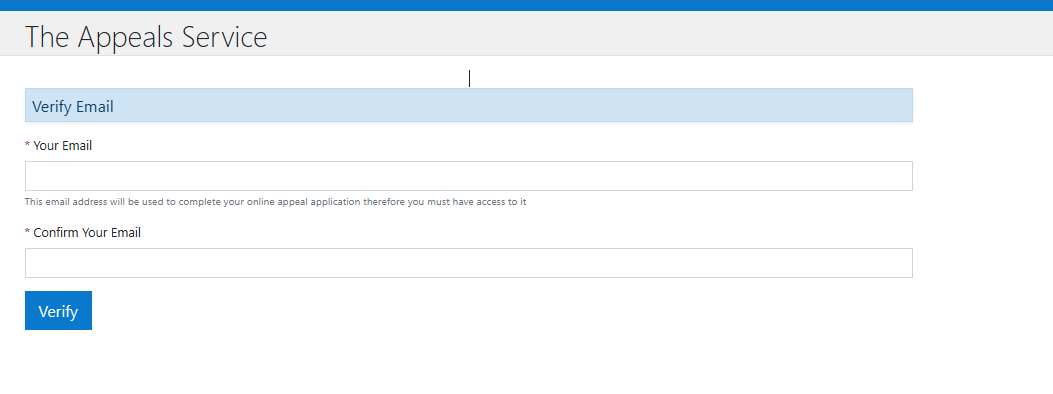
7. Email Verification helptext Change
The helptext provided has been added to the Verify email section of the application.
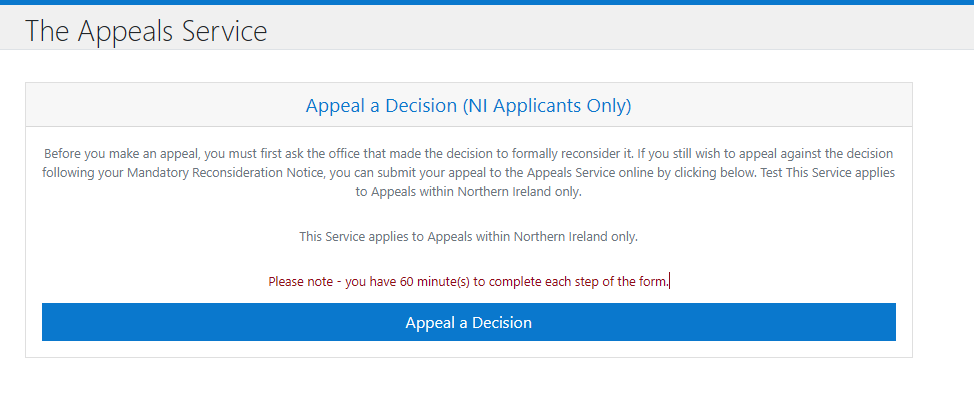
8. Advise that Appeals Service is NI Applicants only
The helptext provided has been added to the Appeal a decision stage of the application. Citizens using the application will be informed that the application is for NI appeals only.
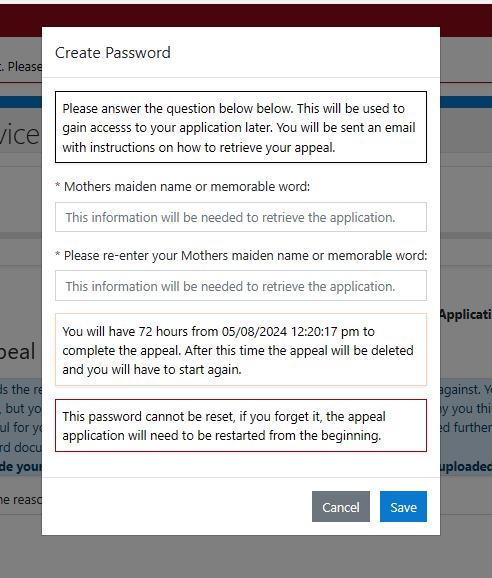
9. Change to Password Instruction on Citizen Save Appeal
The Save Appeal functionality has been renamed 'Create Password' and additional helptext has been added.
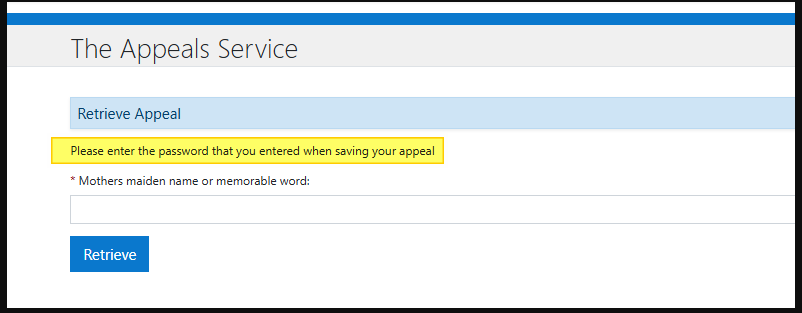
Helptext has also been added on citizen retrieval
Change Request
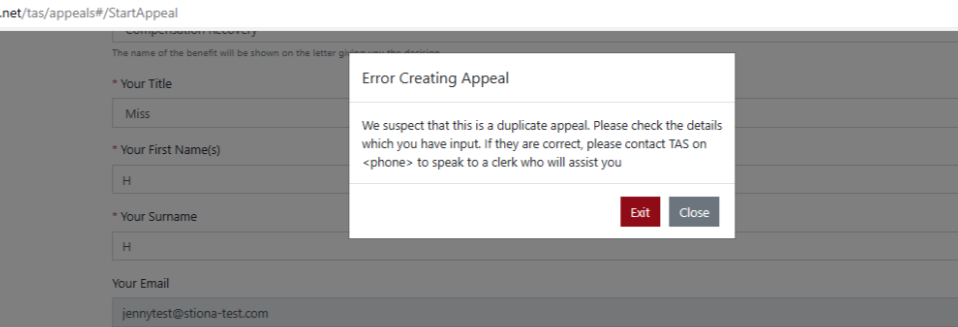
1. Add MRN date to Duplicate Appeal Check
For all appeal types (except Compensation Recovery (CR) ) when a Citizen begins an appeal we will check 'NINO', 'Appeal type' and the 'date of the MRN' and only when all 3 fields match will we flag as a duplicate appeal. This will permit multiple submissions for the same appeal type and NINO with different MRN dates. (Currently we only check NINO and appeal type)
Vue3 technology Upgrade
The underlying technology has been upgraded from Vue2 to Vue2. This upgrade has included a refresh of the look and feel of the appeals user interface.
Changes to Admin View
- Use of contextual menus in Transaction Lists
In the current view of TAS - the transactions list displays with a series of buttons on the right hand side
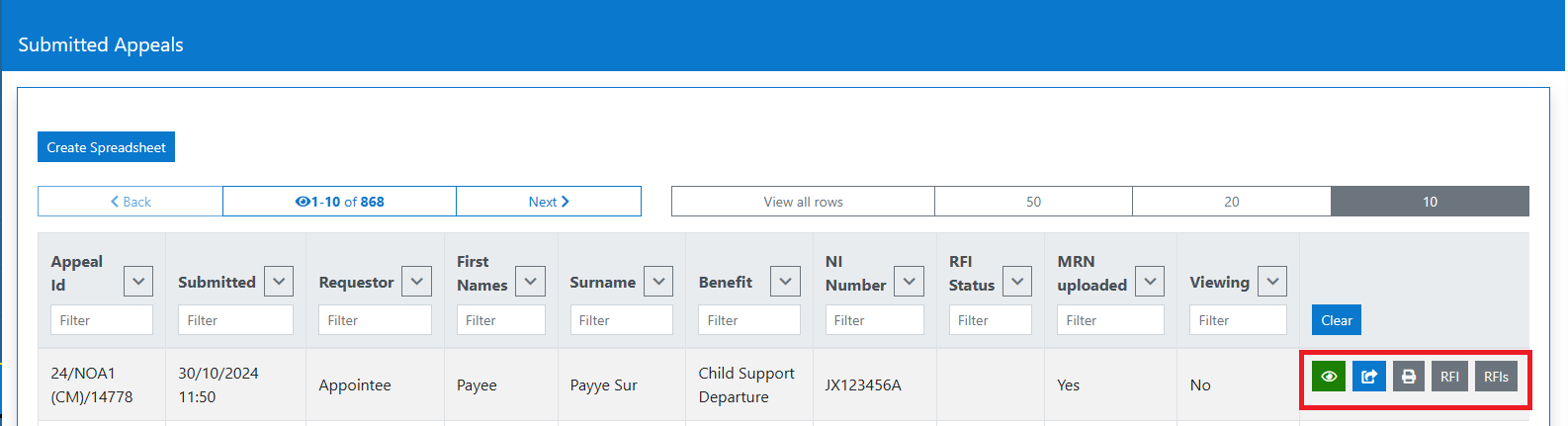
On clicking the first (view) button, the transaction is displayed with the sections across the top of the screen
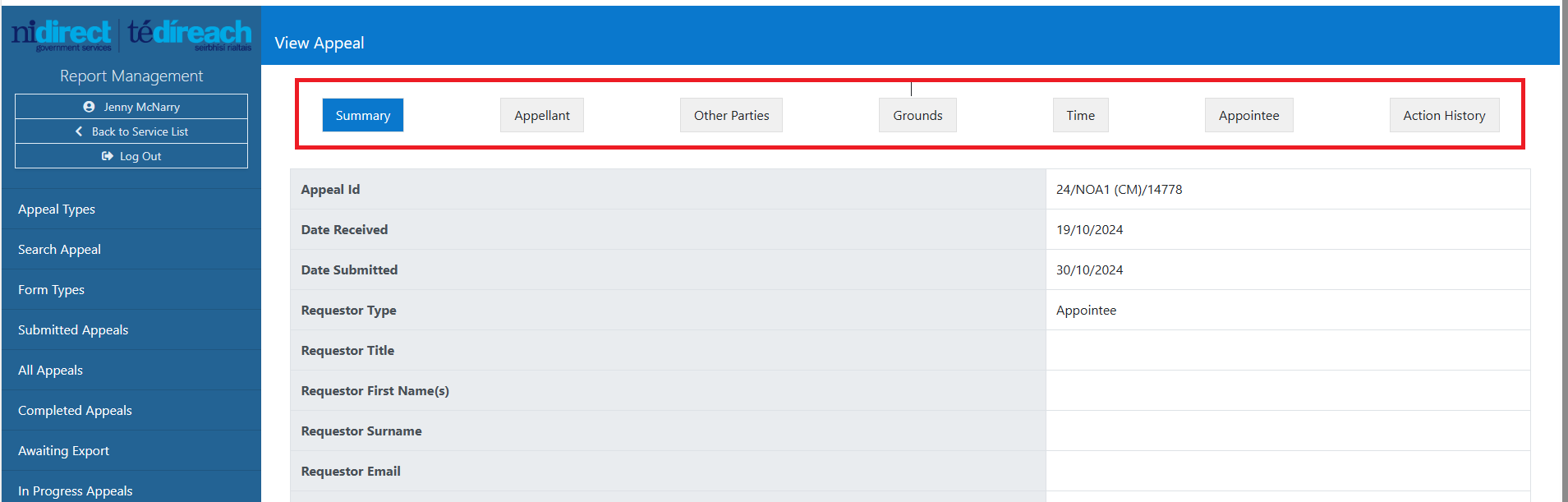
In order to view any of the other buttons, you must go back to the transaction list.
In the new version, the transaction will be displayed with only a View button
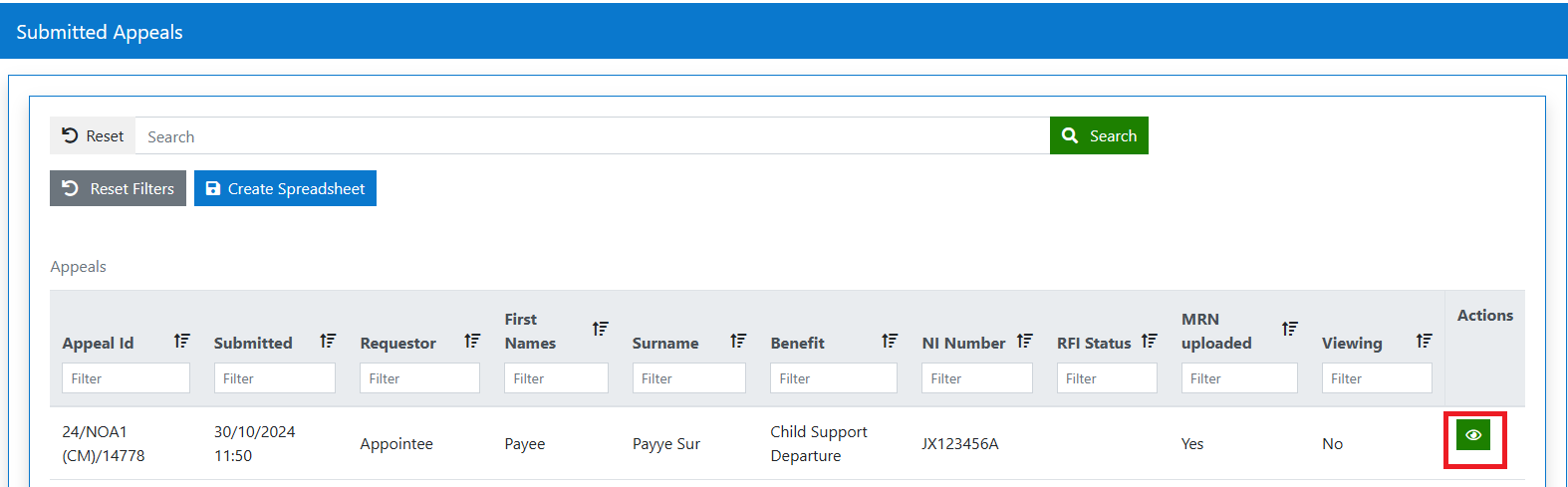
Once you have clicked that button the new contextual screen will display - which shows all buttons for that transaction, and the sections now vertically down the menu
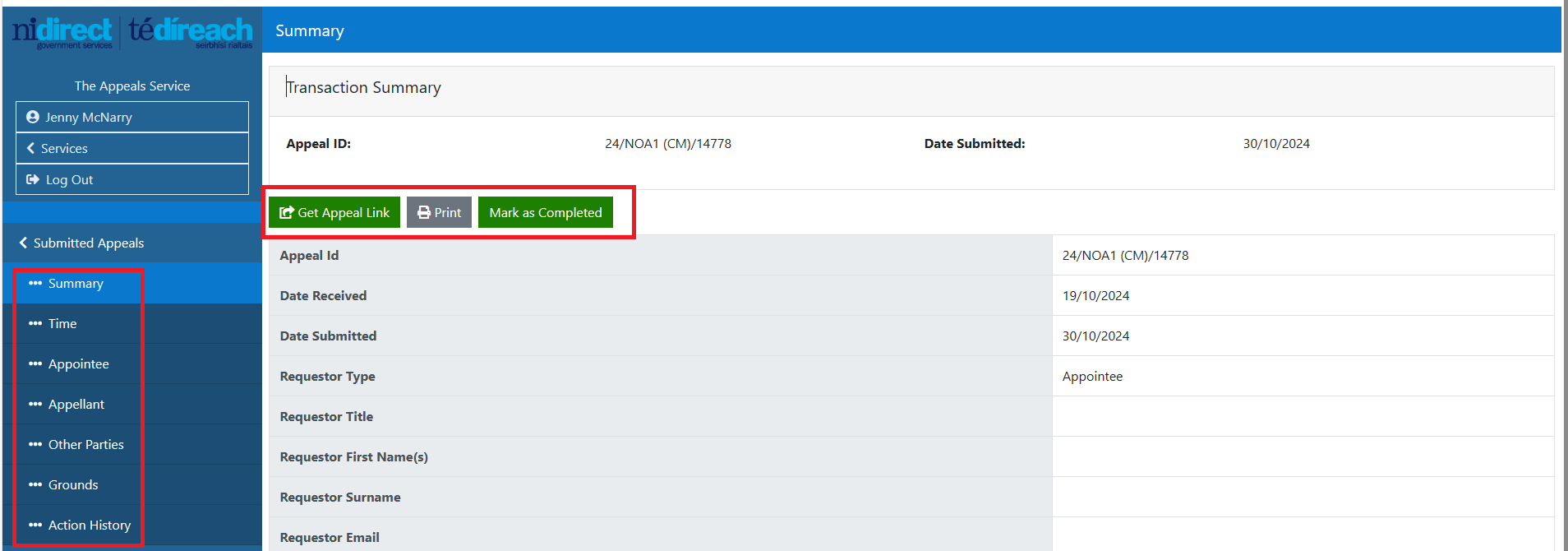
This format has been implemented for all the transactional lists :
- Submitted Appeals
- Proxy In Progress Appeals
- All Appeals
- In Progress Appeals
- Awaiting Export
- Completed Appeals
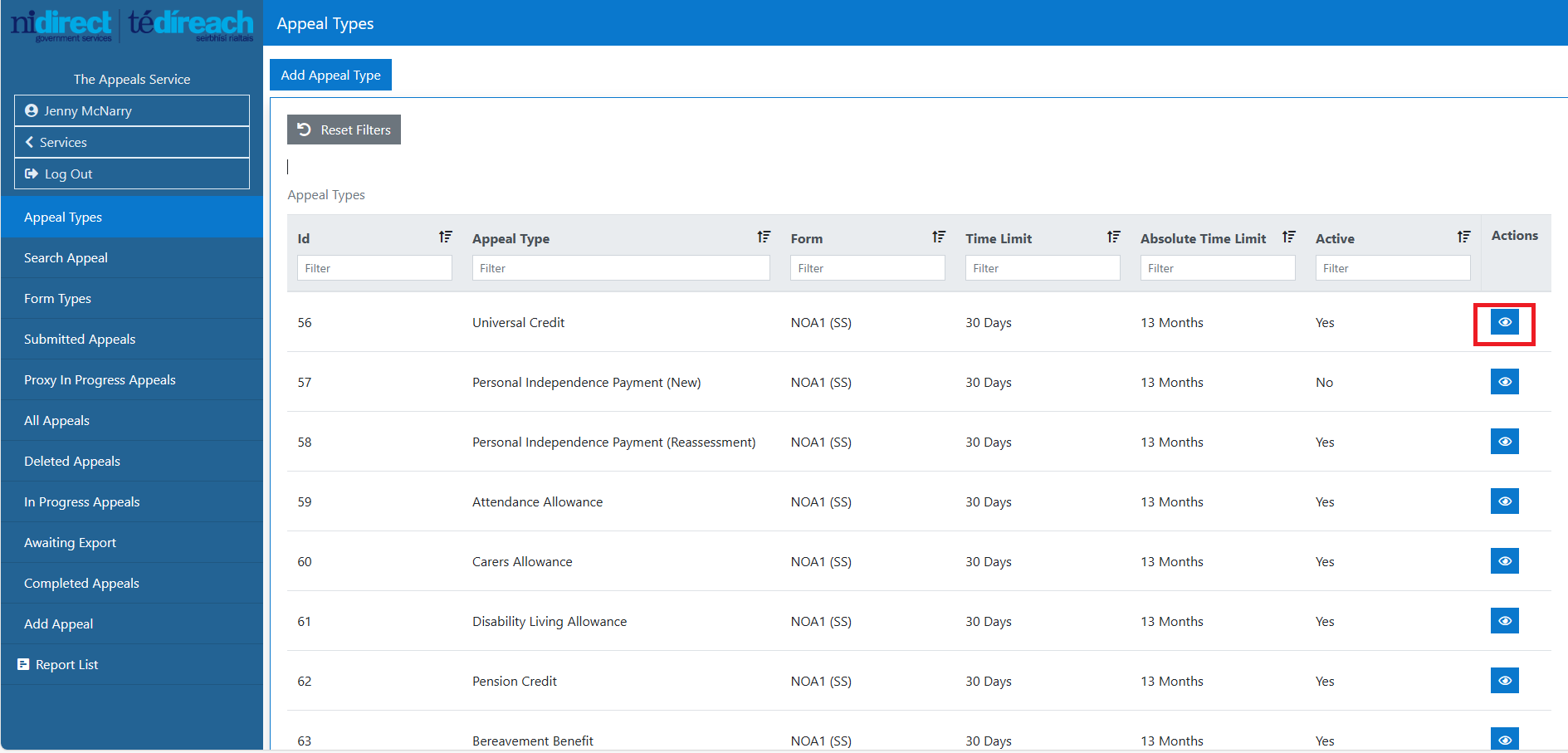
- Use of Contextual menus in Appeal Types
The current implementation of Appeal Type functionality, displays the existing appeal types with buttons on the right hand side of the table. Selecting the edit button displays a modal - allow the edit of the appeal configuration

Once Save or Cancel has been entered, the appeal types screen is redisplayed
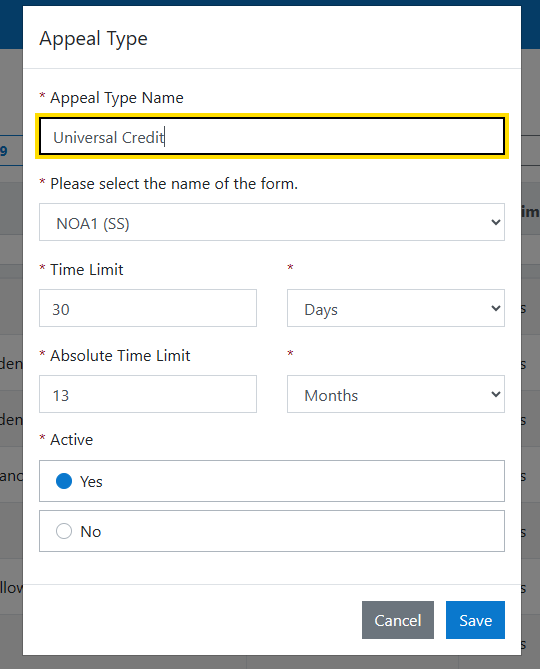
and the user can select the Guidance Notes functionality
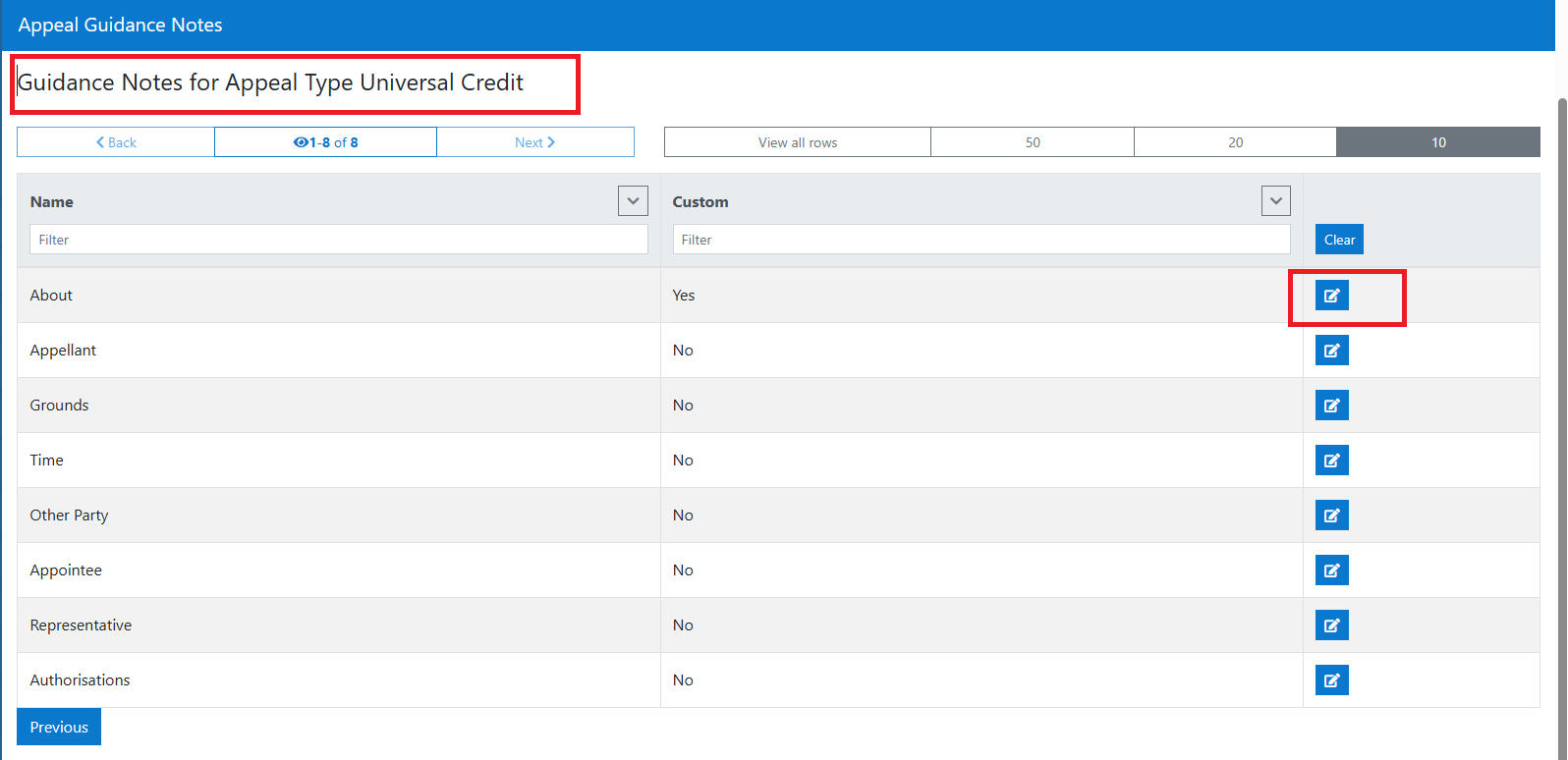
In the Vue3 version, once the appeal has been selected,
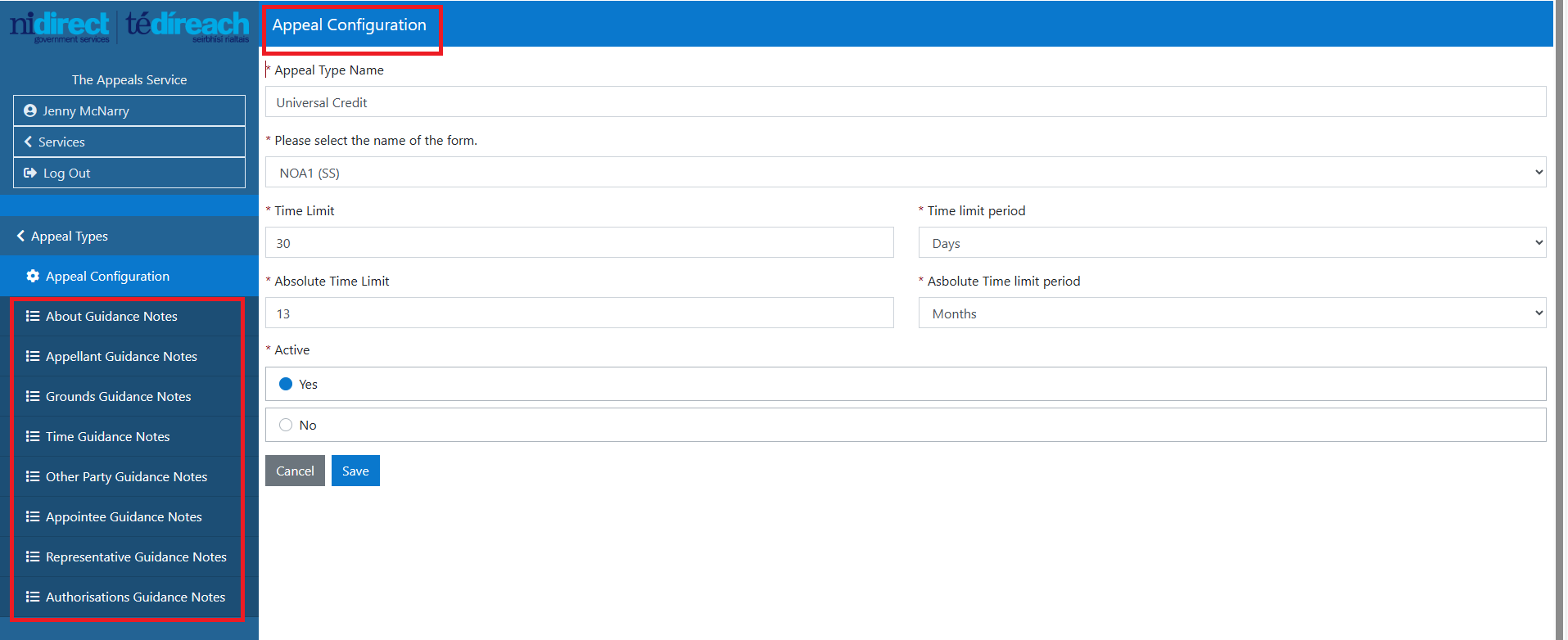
The Appeal type configuration is now a full page and the Guidance notes displayed vertically on the right hand menu.
- Use of Wizard in Appeals
When Admin is creating or editing an appeal - a list of steps are currently displayed along the top of the screen
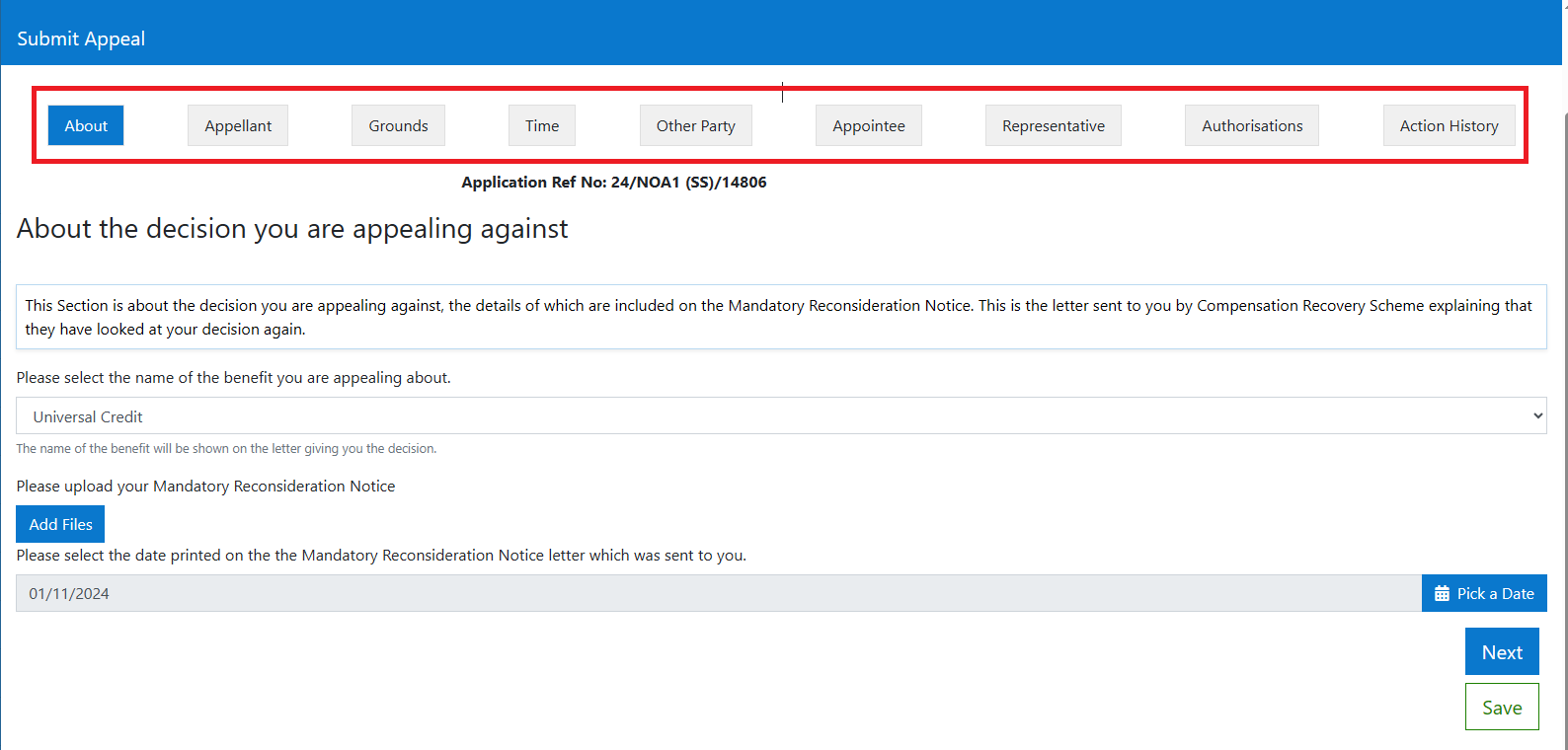
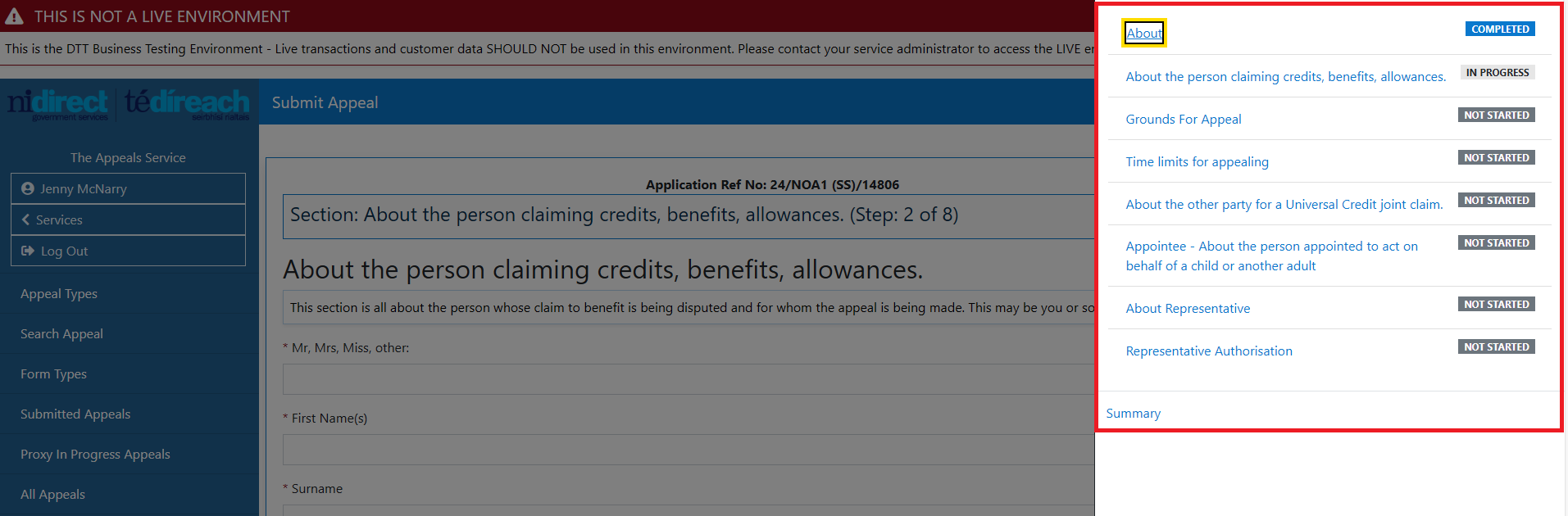
This component has been upgraded to a Wizard format - showing the Steps ie About (Step 1 of 8) depending on the type of appeal.
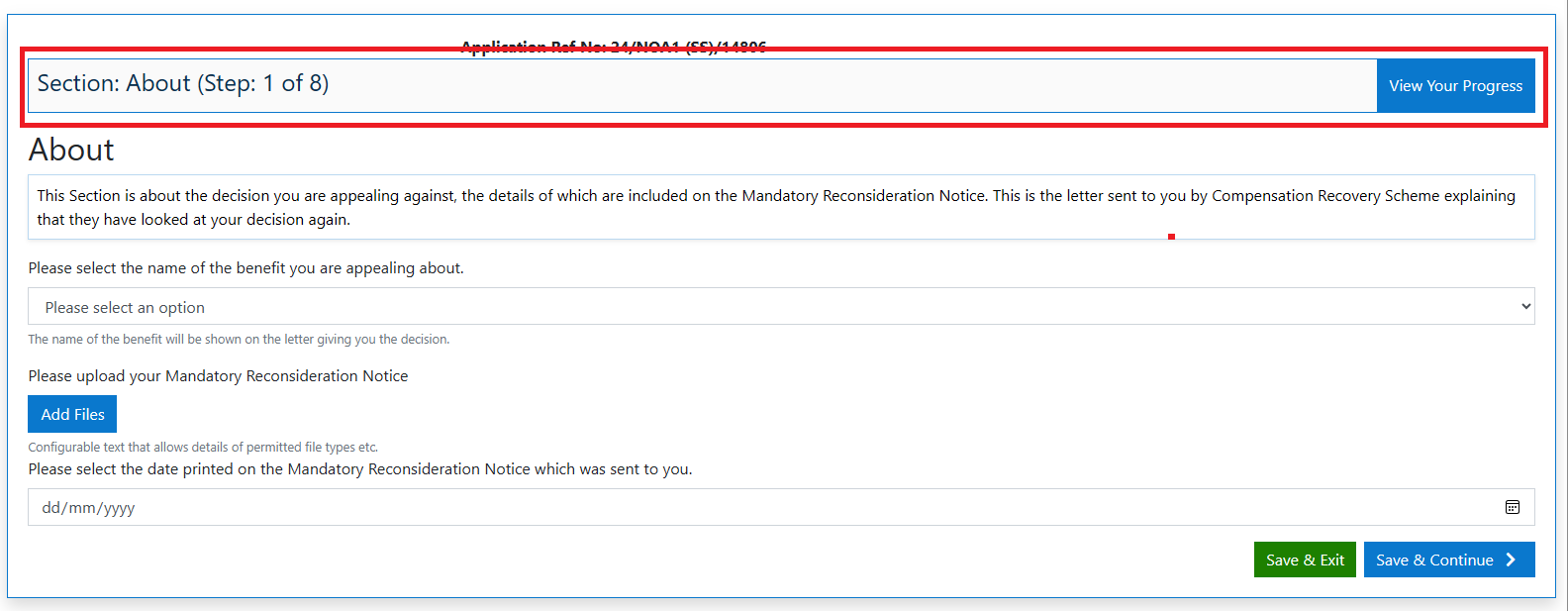
This new component also shows the status of each step and permits the user to navigate to any step in the flow.
Changes to the Public View
- There have been a few changes to core components such as date pickers and date of birth fields - to simplify user completion
(example: New date picker )

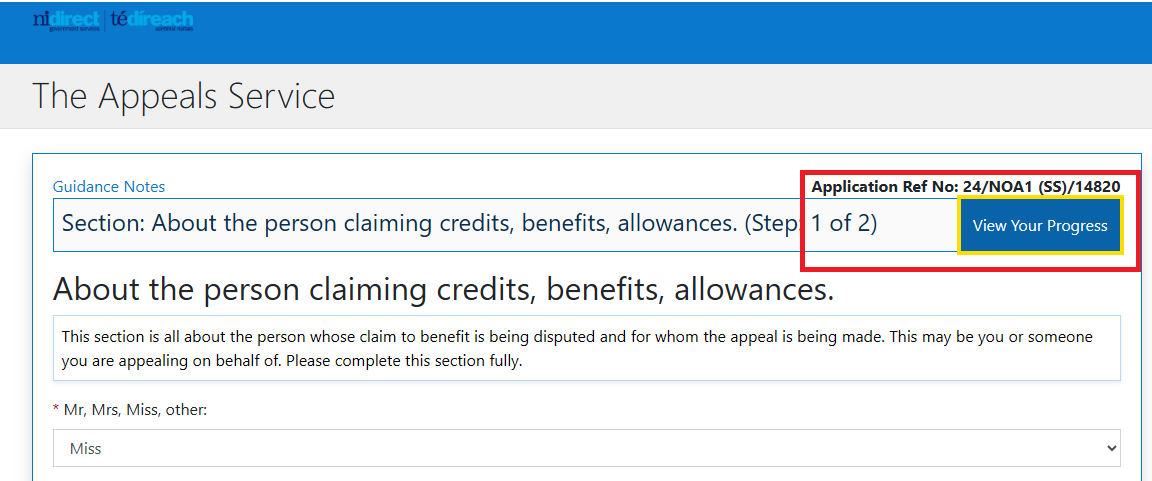
- Implementation of Wizard
The new wizard flow has also been implemented on the Public view - showing the users progress through the appeal flow selected.
The footer at the bottom of the wizard is more explanatory :
Existing :

New:
