Cancel Bookings
The Cancel Bookings feature allows you to search for and cancel any of your current bookings.
From the left-hand navigation menu, click the Cancel Bookings menu item.
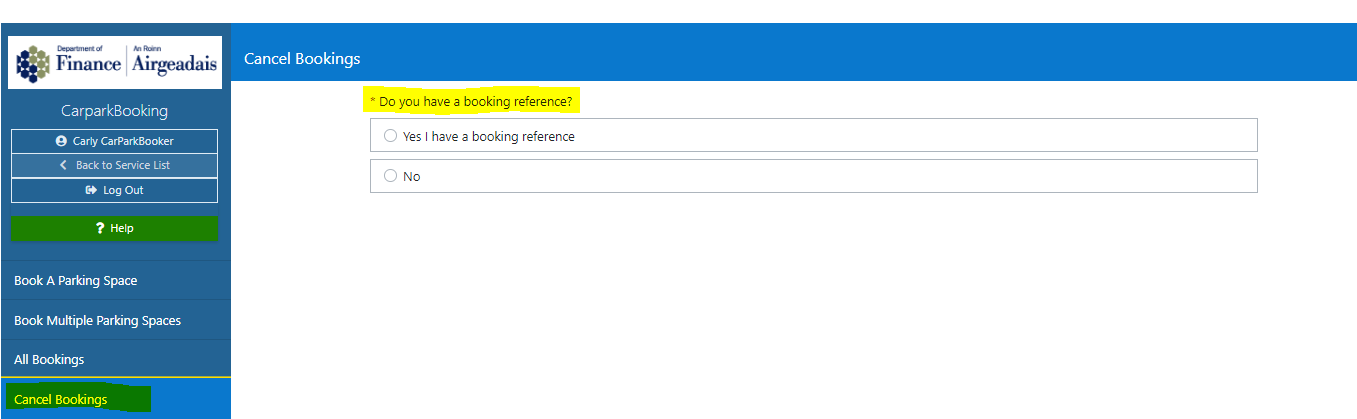
You will be asked if you know your Booking Reference - you can find your reference number in the automated confirmation email you received when the booking was made.
If you know your booking reference
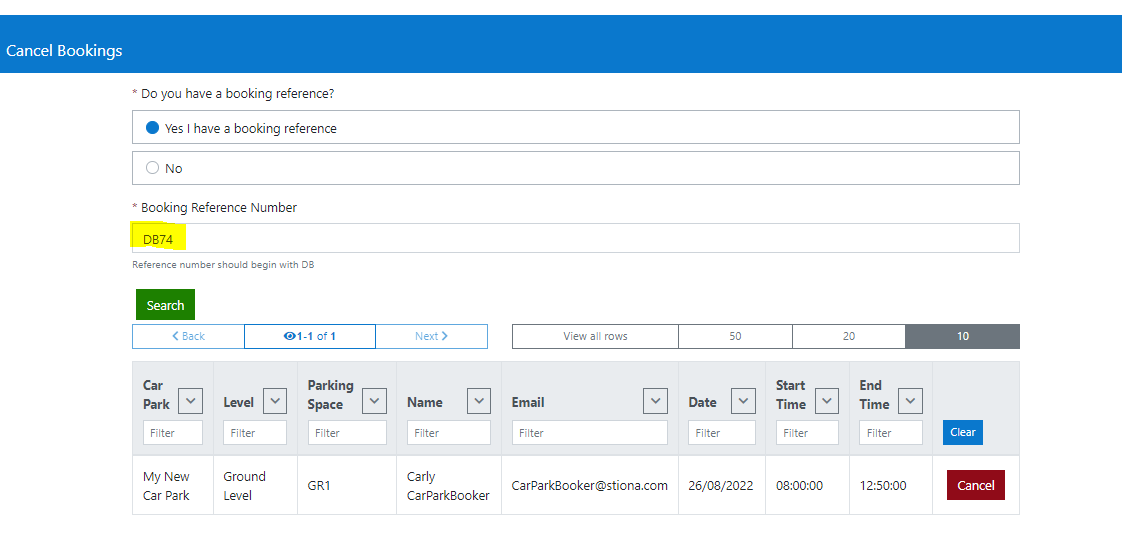
- click Yes - this will display the Booking Reference Number field.
- enter your booking reference and
- click the Search button.
Any booking matching this reference number will be displayed in a sortable/filterable table.
The table will display the Car Park, Level, Parking Space, Name, Email, Date, Start Time and End Time details of each booking returned.
Single day/time slot booking
If your booking is for a single day or time slot, then your booking will be displayed along with its associated Cancel button.
Multiple day/time slot booking
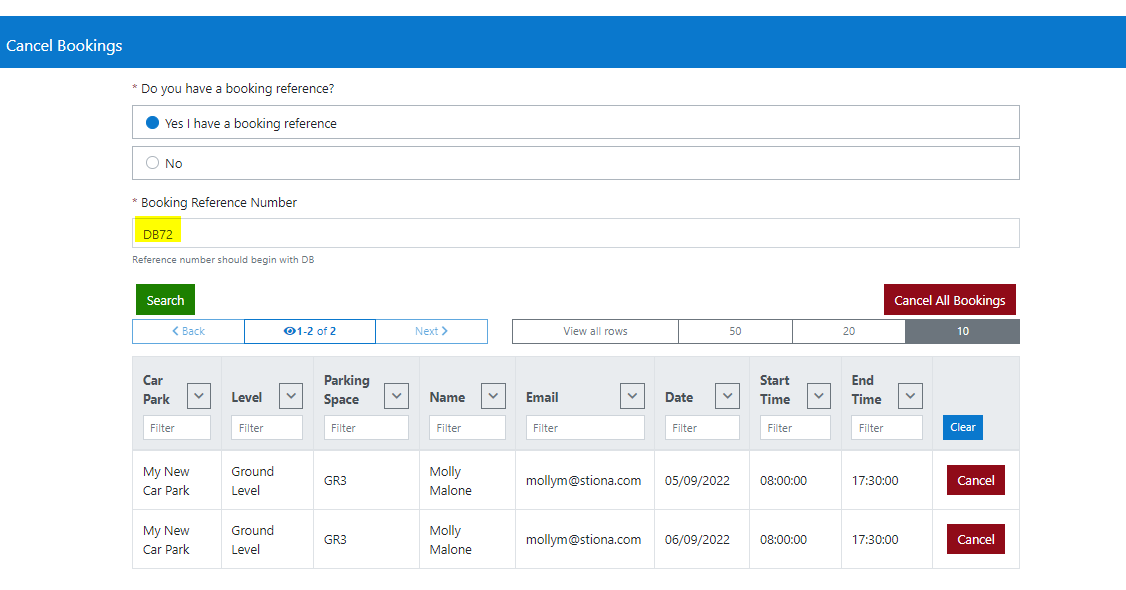
If your booking is for multiple days or time slots, then all the bookings associated to this reference number will be displayed. These can be cancelled individually using their associated Cancel buttons or as a group in one action using the Cancel All Bookings button.
Clicking either the Cancel or Cancel All Bookings button will display the confirmation modal:
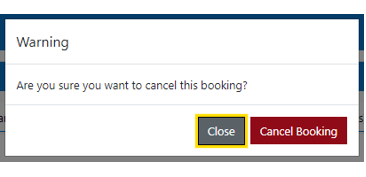
- clicking Close will dismiss the modal
- clicking Cancel Booking will dismiss the modal and cancel your booking(s).
The booking(s) will be removed from the All Bookings list.
If the booking was for yourself, then you will also receive an automated email confirming the cancellation. If however, you booked on behalf of someone else, then they will receive the automated notification.
If you do not know your booking reference
- click No - this will add the Contact Email, Start Date and End Date fields to the page
- enter your email address
- enter a date range using the Start Date and End Date fields - note that the date range will automatically default to today's date
- Click the Search button.
The system will return all the bookings matching the criteria you provided and display them in a sortable/filterable table.
The table will display the Car Park, Level, Parking Space, Name, Email, Date, Start Time and End Time details of each booking returned.
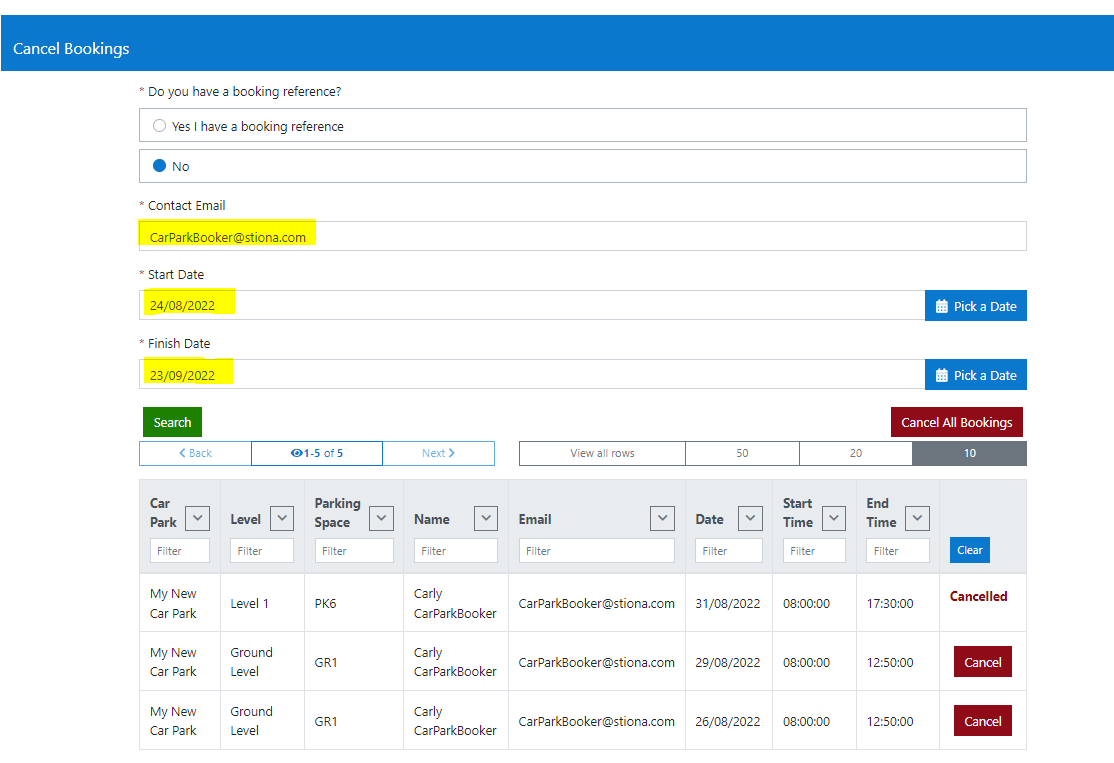
You can then use the Cancel button to cancel bookings on an individual basis, or the Cancel All Bookings button to cancel all the bookings listed in the table.
Once you have confirmed the cancellation, the booking(s) will then,
- be set to Cancelled in the currently displayed list
- no longer be returned in the All Bookings list
And finally, if the booking was for yourself, an automated email confirming the cancellation will be sent to your email address. If however, you booked on behalf of someone else, then the notification will be sent to their email address.
Cancelling bookings via the All Bookings page
You can also cancel your bookings via the All Booking page - for full details, please visit the Cancelling your booking section of the All Bookings user guide.